
Your Wildflower bridal portal
Less searching.
More enjoying this.
A home for the details of your wedding, from the shape of the day to the people helping bring it together. Explore the sample, then keep your own portal close when you book.
The Wildflower Madison · Madison, Georgia
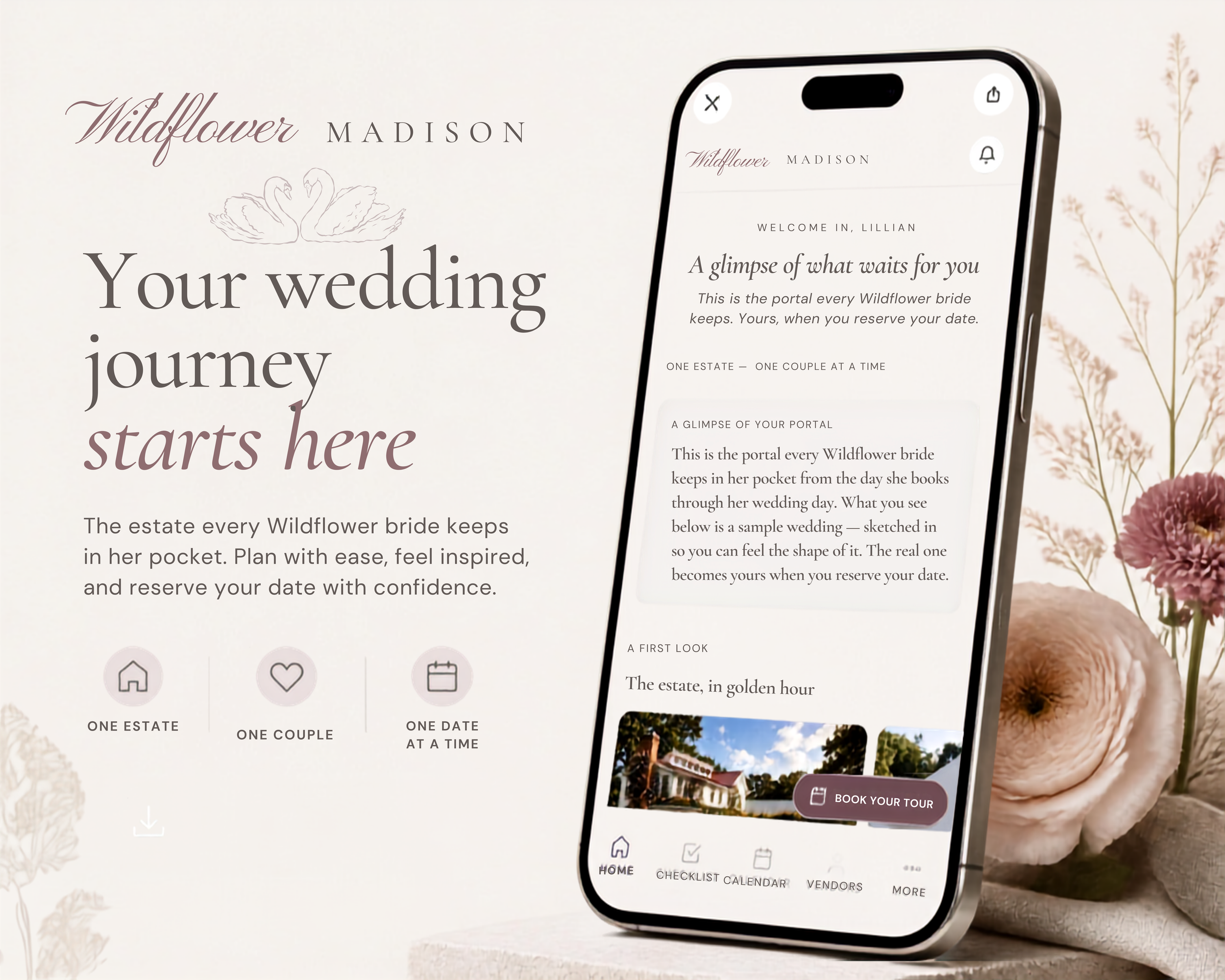
One place to come back to
The information you need.
Without the email hunt.
Your personal portal brings Wildflower planning resources and your wedding details into one place. It supports your conversations with your planner; it doesn’t replace the person who knows your day.
See the shape of your day
Review the wedding timeline and share questions about the moments that matter. Your planner confirms the final plan.
Explore the details
Find property-space and room guides, collection information, floral details and planning resources together.
Keep your people connected
Find team contacts and guidance when you need the next step. Ask Wildflower can help with general property and planning questions.
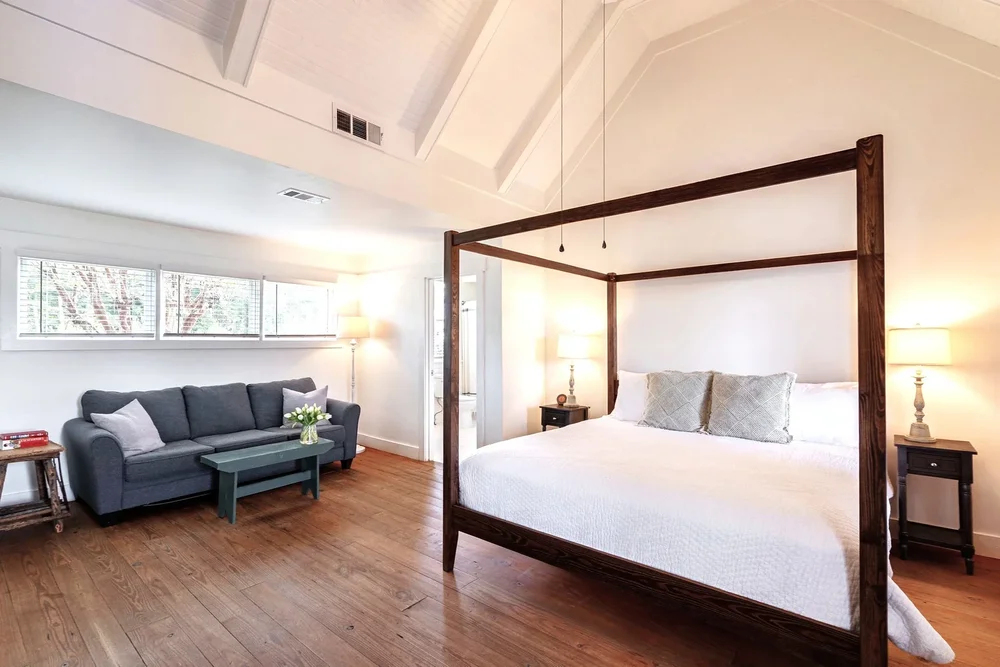
From the big picture to the small things
Who sleeps where?
Where does the day unfold?
Room and space guides help you think through your wedding beyond the ceremony. Your personal portal can reflect your date, planning stage and confirmed wedding details as the team updates them.
Features and information may vary by booking and planning stage. The public portal is a sample, not your personal wedding record.
Keep it in your pocket
No app-store download.
Just your portal, a tap away.
The portal is a website you can add to your phone’s home screen. Use your personal link from Wildflower for your own wedding; the public sample is only for exploring.
Open it in Safari.
- Open your Wildflower portal link in Safari.
- Tap the Share button.
- Choose Add to Home Screen. You may need to scroll through the actions.
- Tap Add. Use the new icon whenever you need your portal.
Open it in Chrome.
- Open your Wildflower portal link in Chrome.
- Tap the three-dot menu.
- Choose Add to Home screen or Install app, if offered.
- Follow the prompts. Your portal will be easy to find on your phone.
Menu wording can vary by device. If the option is not offered, bookmark your personal link. An internet connection is needed for live information and submissions.
The Wildflower way
A helpful tool.
A real person behind it.
Your planner remains your point of contact. Use the portal to get oriented and keep details close, then talk with the team about decisions, changes and anything that needs confirmation.
Take a look around
Meet your planning companion.
Not booked yet? Explore the public sample. Already a Wildflower couple? Open the personal link we sent you, or contact the team if you need it again.
A few good questions
Before you wonder.
Where do I get my personal portal?
The Wildflower team sends your personal link for your wedding. Contact us if you cannot find it. Opening the public sample does not create a personalized wedding portal.
Is the sample portal my wedding information?
No. The sample shows what the experience can look like. Its names, date and example timeline are not your booking details.
Should I share my personal link?
Treat it as private. Share it only with people you want to have access to your wedding information, and ask our team before sending it more widely.
Does everything I type automatically become a confirmed change?
No. Use the save or send controls provided for that feature, and check with your planner for important changes. A note or AI answer is not an amendment to your agreement or a confirmed order.
Can I use it without installing anything?
Yes. Open your link in a browser on your phone, tablet or computer. Adding it to your home screen is simply a convenient way to return.